


Photo Editing Apps
- NYP CEAC

- Sep 14, 2018
- 3 min read
Photographers have a specific vision in mind for it to come to life. Part of that vision begins in the camera while the rest of the magic happens after the picture is taken, through an editing software. Even as a beginner, you can get the best out of your photos, with a smartphone camera and a great photo app that allows you to express your creativity. With so many photo apps available on smartphone, how do you know which ones to choose?
As the saying goes,
“If you have the motivation and the right tools, you can succeed.”
To help you decide, here are the three best photography applications that we believe, might help you to enhance your photos.
1. Snapseed
Snapseed is a free app that is available for both Android and iOS. It is simple and easy to use which makes it suitable for everyone who likes to play around with their images. It offers a surprisingly powerful range of tools you can use to give your pictures that professional finish. This app is very helpful for serious photographers who want to work on their photos while on the go.
Here are some of the features:
Selective

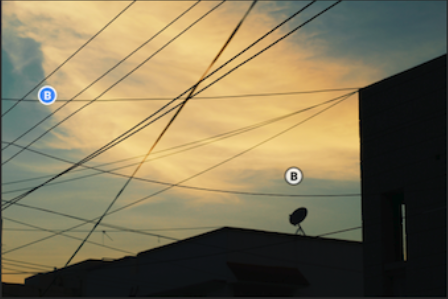

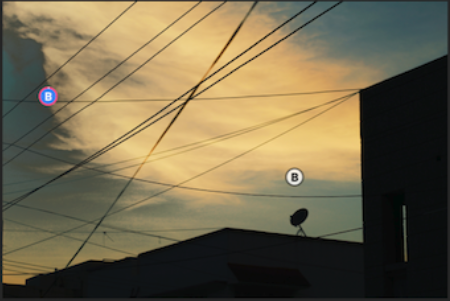
Before After
“Selective” option allows the user to edit only a particular area of the photo. For example, you can adjust the brightness of particular area of your photo without messing up the rest of the shot.
Healing

Majority of photographs you capture may be ruined due to unnecessary object hindering with the scene or an oblivious stranger walking in the frame. “Healing” option allows you to remove unwanted objects in the photograph.
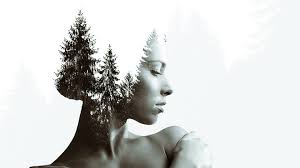
Double Exposure

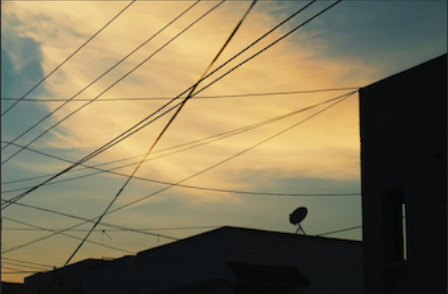

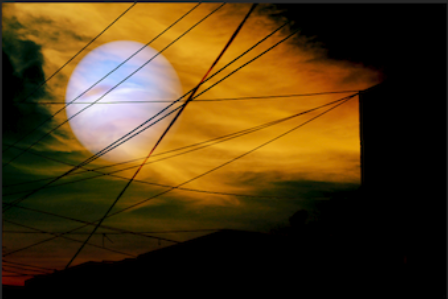
Before After
“Double Exposure” allows you to blend two photos into one. This will turn your normal everyday photos into an artistic and breathtaking images. You can then show off the amazing pictures to your friends on Facebook, Twitter and Instagram.
If you need more inspiration, here are some examples:


2. VSCO
VSCO is a free app available for both Android and iOS. This app includes a sample pack of filters and more are available as in-app purchases. It is straightforward and ideal for quick adjustments (colour, exposure and sharpness, crops and skews).
Here are some of the features:
Filters
VSCO filters can create a soft and authentic look that resembles real film. Here is an example of how the preset filters can make subtle changes to better enhance the waterfall and the trees around it.


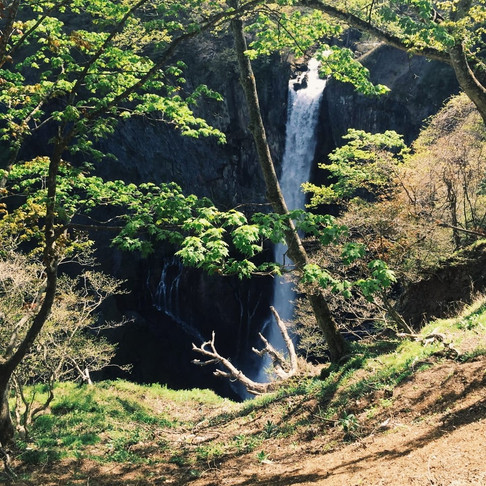
Before After
VSCO preset filters also have the ability to create drastic emphasis certain features. One of the most popular presets photographers use is the Aesthetic Series (A4-A6). Here is an example of how one of the filters enhanced the buildings and the sky.


Before After
Temperature
The temperature editing tool can be used to play with the colour tone. When you’re using this tool, you can shift left to make your photo appear cooler (contains more blue) and shift to the right to make your photo appear warmer (contains more yellow/brown). Below are 2 examples of each.


Before After




Before After
3. Adobe Lightroom CC
Adobe Lightroom CC is a free app available for both Android and iOS. It is great for both beginners and advanced users. You can edit a photo in seconds with sliders and one-tap filters.
Here are some of the features:
Exposure
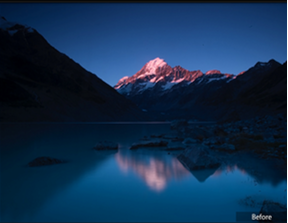
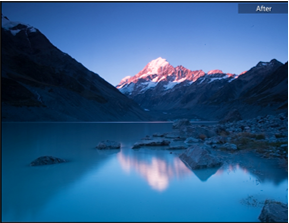
Before After
Did your camera underexpose or overexpose a scene? A quick adjustment with the exposure slider may be all you need. If a photo is too dark overall, drag the exposure slider to the right to lighten it. If a photo is too light, drag the exposure slider to the left to darken it.
Contrast
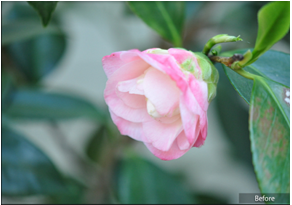
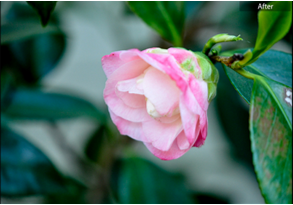
Before After
Sometimes a photo will look flat or dull straight out of your smartphone camera. By using contrast slider, you will be able to add life to a dull photo. Dragging the contrast slider to the left to make the tones look darker, deeper and richer.
Saturation

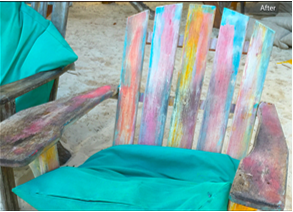
Before After
Are the colours in a photo too dull? You can increase colour intensity with the saturation slider. Dragging the saturation slider to the right will intensify all the colours in a photo.
References:
1. Shubam Agarwal. The Best Snapseed Tips to Take Your Photo Editing Game to the Next Level. Techpp. Retrieved from
2. Vincent Carabeo. 5 Tips For Better Editing In VSCO. Moment. Retrieved from
3. Aaron Grimes. (June 20, 2018). Discover some of the amazing ways that you can edit and enhance your photos using Adobe Lightroom Classic CC. Adobe. Retrieved from
4. Kate Wesson. (June 20, 2018). 10 Best Photo Apps For iPhone Photography (2018 Edition). iPhone Photography School. Retrieved from


Comments